A good help center answers questions before they become support tickets. On WordPress you can run docs, search, tickets, a changelog and even a public roadmap in one place, under your own domain. This guide covers how to structure a knowledge base, which features actually reduce support load, and how to set it all up.
Why host your help center on WordPress
Hosted help desk tools are convenient but charge per agent or per month, and your content lives on their platform. A WordPress help center keeps your docs on your own domain, which helps search engines connect your help content with your product. You also control the design, the URLs and the data.
The trade-off is that you maintain it yourself: updates, backups and hosting. For most small software teams that is a fair trade.
Plan your docs structure first
Readers do not browse docs; they search or skim. Organize for that:
- Getting started. Installation, first setup, the five-minute win.
- Guides by task. “How to import a demo”, “How to add a user”, written as steps.
- Reference. Settings, options, shortcodes, API endpoints.
- Troubleshooting. Common errors and their fixes.
- FAQ. Billing, licences, compatibility.
If you sell several products, give each one its own section. If your product has major versions, keep docs versioned so older customers still find the right instructions.
Features that actually reduce tickets
Instant search
Search is the most used feature of any help center. It should show results while the visitor types and work from a keyboard shortcut such as ⌘K or Ctrl+K.
Suggested answers in the ticket form
When a customer starts typing a ticket subject, show matching articles. Many questions get answered right there, before the ticket is sent.
Purchase or licence verification
If you only support paying customers, verify a licence key, order number or marketplace purchase code before a ticket is accepted. This keeps your queue focused.
Changelog
A public changelog answers “is this fixed yet?” and shows the product is maintained.
Roadmap with voting
Letting customers vote on planned features turns feature requests into a list you can prioritize, instead of scattered emails.
Status page
When something is down, a status page saves you from answering the same question fifty times.
Writing docs people can follow
- One task per article. Title it with the task: “Add a team member”.
- Start with the result, then the steps.
- Number the steps. Keep each step to one action.
- Use screenshots for anything with more than two clicks.
- Update the article when the interface changes. Outdated screenshots erode trust quickly.
Building it with Helpdox
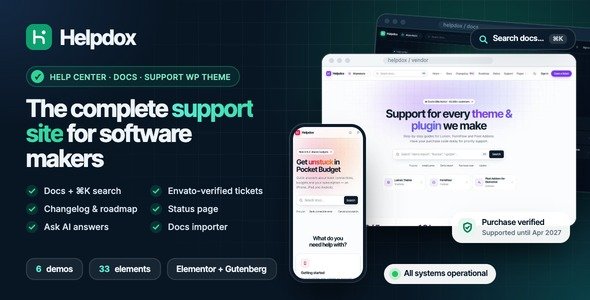
Helpdox is our help center, knowledge base and customer support WordPress theme for software makers: SaaS products, theme and plugin vendors, developer APIs, mobile apps, hardware and internal IT teams.
- 6 demo homepages, one-click demo import
- Versioned, multi-product docs with instant ⌘K search
- Support tickets that suggest answers while customers type
- Envato purchase code, WooCommerce order and licence verification
- Changelog, public roadmap with voting, and a status page
- 33 elements for Elementor and the block editor
- Ask AI answers, llms.txt and a docs importer
- Midnight dark mode and RTL ready
You can try search, the ticket form and the roadmap on the Helpdox demo.
Measuring your help center
A help center is working when tickets go down while customers grow. Track a few simple numbers each month:
- Searches with no results. Each one is an article you should write.
- Most viewed articles. Make sure they are up to date and easy to follow.
- Tickets per customer. It should fall as your docs improve.
- Repeated ticket topics. Three tickets on the same question means a missing or unclear article.
Using AI answers responsibly
AI-generated answers in a help center can save time, but only when they are grounded in your own docs. Keep your articles accurate and current, because the AI answer is only as good as the source text. Make it easy for customers to reach a human when the answer is not enough, and review AI answers for your most common questions regularly.
llms.txt and AI search
AI assistants increasingly read documentation to answer questions about products. An llms.txt file gives them a clean, structured map of your docs, which can improve how your product is described when people ask an assistant. It is a small step that is easy to add when your theme supports it.
Keep docs and product in sync
The biggest cause of bad docs is a product that changes faster than its documentation. Add “update docs” to your release checklist, link changelog entries to the articles they affect, and mark articles with the version they apply to.
Who this is for
Helpdox suits:
- software companies and SaaS products that want docs and support on their own domain
- WordPress theme and plugin authors (purchase code verification is built in)
- internal IT teams that need a self-service knowledge base
It is not the right tool if you need:
- live chat or phone support routing (pair it with a dedicated chat tool)
- a large multi-agent help desk with SLAs, shifts and complex automation
A simple launch plan
- Import the demo and choose a homepage.
- Create your product sections and the Getting Started articles first.
- Write the ten articles that answer your most common support emails.
- Turn on ticket verification if you only support customers.
- Publish your changelog and add a link to it in your product.
- Run through the WordPress launch checklist.
Then review your tickets every month and turn repeated questions into new articles.
Pricing
Helpdox costs $29 for one site on fekbd.com, with a lifetime licence and one year of support. It is part of the All-Access Bundle, together with every other FEKBD theme, template and plugin. If your product is an admin app, our guide to choosing an admin dashboard template may also help.
Common mistakes when launching a help center
Writing articles in the order features were built
Customers do not care when a feature shipped. Write the articles that answer the questions your support team gets most often first, even if they cover older features.
One huge article per topic
Long articles that cover everything are hard to scan and hard to link to. Split them into short articles that each answer one question, and link them together.
No owner for the docs
Docs drift out of date when nobody owns them. Give each category an owner and add “update the docs” to your release checklist.
Hiding the contact option completely
A help center should reduce tickets, not block customers. Show a clear way to contact support after people have read an article and it did not help.
Templates that speed up writing
Using the same structure for every article makes docs easier to write and easier to read.
| Article type | Structure |
|---|---|
| How-to | Goal, steps, expected result, troubleshooting |
| Troubleshooting | Symptom, cause, fix, how to prevent it |
| Reference | What it is, options, defaults, examples |
| Getting started | What you need, first steps, what to do next |
A monthly review routine
- Look at the searches that returned no results and write articles for the top ones.
- Read the lowest-rated articles and rewrite them.
- Check the ten most-viewed articles against the current product.
- Ask the support team which article they linked most often in replies.
- Archive articles for features that no longer exist.
Thirty minutes a month on this list keeps a help center accurate and keeps ticket volume moving in the right direction.
Who this is not for
If your product changes every day and your docs are generated from code, a developer documentation tool that builds from your repository may suit you better. A WordPress help center works best when a support or product team writes and maintains articles by hand and wants a site customers can search easily.
Connecting docs to support replies
When a support agent answers a question that is already documented, they should reply with a link to the article instead of rewriting the answer. It saves time, keeps answers consistent, and teaches customers to check the help center first next time. If no article exists, the reply becomes the first draft of a new one.
Over time, these small habits compound. A help center that is reviewed monthly, linked from every support reply and written in a consistent structure becomes the first place customers look, and that is when ticket volume starts to fall in a way your team can feel.
Frequently asked questions
Can I run docs for more than one product?
Yes. Helpdox supports multi-product, versioned docs, each with its own section.
Can I limit support to paying customers?
Yes. Tickets can require an Envato purchase code, a WooCommerce order or a licence check.
Does Helpdox work with the block editor?
Yes. Its 33 elements work in both Elementor and the WordPress block editor.
Can I import existing docs?
Helpdox includes a docs importer. Check the documentation for the formats it supports.